Cardboard
Google LLCLibraries & Demo
3.25.15K Reviews
- Version
- 4.0.1
- Installs
- 10.00M
- Age Rating
- Everyone
Screenshots
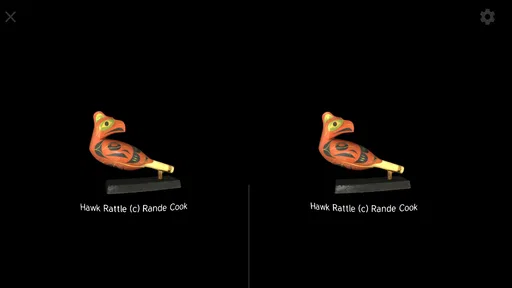
Our Review of Cardboard
 Analysis by Appyee
I find Cardboard easiest to understand as a phone-based introduction to VR, not a replacement for a dedicated headset. It gives a smartphone a way to present split, immersive views through a compatible viewer, making it possible to look around a virtual scene by moving your head. The appeal is the low barrier to trying the format: you can explore the idea at home without starting with elaborate equipment. The trade-off is that the phone and viewer shape the experience, so it feels more like a hands-on demonstration than a fully featured VR system.
What to expect from a phone-based VR app
Google LLC’s free app sits in the libraries and demo category, and its purpose is clearest when you treat it as a doorway to VR experiences rather than a deep collection in its own right. The app has a 3.5 average from around 163,000 ratings, with more than 10 million installs. Those figures suggest broad curiosity, though they do not guarantee that every phone-and-viewer combination will feel equally comfortable.
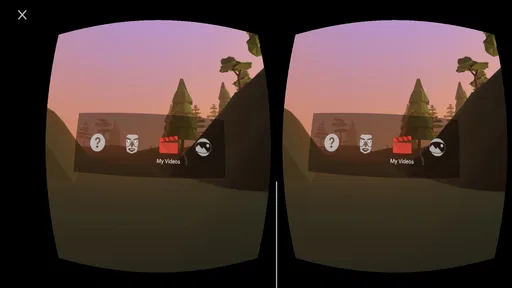
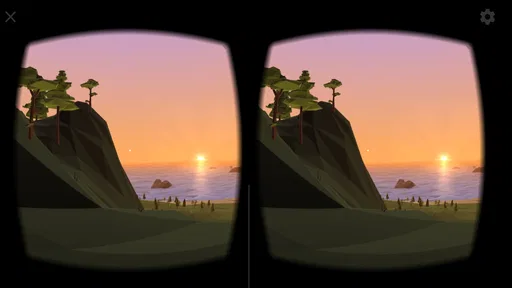
The practical experience depends on the viewer as much as the software. A phone viewer holds the display close to your eyes and separates the image for each eye, while head movement gives you a way to scan the scene. That arrangement can make a panorama or demonstration feel engaging, but it also makes small setup errors more noticeable than they would be on an ordinary screen. I would think of it as a quick way to sample immersive media, especially if you are curious about how looking around a digital space feels.
It is also worth separating the app from the content you may use with it. The app is a starting point for the Cardboard experience; individual VR demonstrations and videos can come from other apps. That distinction matters if you are expecting one download to provide a large, carefully organized library. If you already have a particular 360-degree video or compatible experience in mind, check that it supports this style of viewing before setting everything up.
Getting Started with Cardboard
The first thing you’ll notice about Cardboard is how easy it is to set up. I mean, who doesn’t love a simple setup? Download the app, pop your phone into a cardboard viewer, and voila! You’re ready to roll. The app guides you through a quick setup process with a nifty tutorial to ensure you align everything perfectly. Trust me, you’ll be hopping into VR worlds in no time.
Making the first session comfortable
Before opening a scene, I recommend checking that the phone fits securely in the viewer and that the lenses are positioned evenly in front of the display. A slight shift can make the picture feel lopsided or harder to focus, which people sometimes mistake for a problem with the app. If the viewer includes a way to adjust its fit, make small changes and look at a stationary scene before trying anything fast-moving.
Start seated, with enough space around you to turn your head without bumping into furniture. This is a simple precaution, but it also makes the first attempt less distracting: you can focus on learning how the image responds instead of worrying about where you are standing. Keep the first session short. A phone held close to the eyes can feel tiring, and pausing is a better first response to discomfort than trying to push through it.
One useful setup habit is to test the phone in ordinary use before placing it in the viewer: make sure the screen is awake and the content you want is ready. Once the phone is inside, reaching its controls may be awkward, depending on the viewer. This small bit of preparation avoids taking the headset apart simply to find the next item or change what is playing.
Features That Stand Out
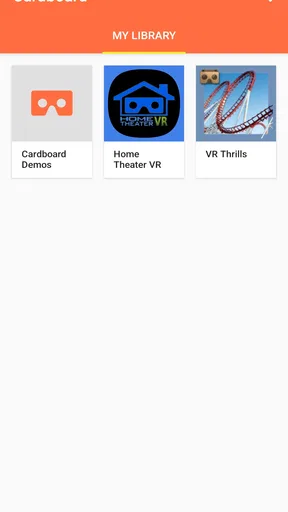
Now, let’s talk features. The app itself is pretty straightforward but packed with some cool stuff. For starters, you have access to a variety of VR experiences, from exploring the depths of the ocean to flying over cities. It’s like having a theme park in your pocket. And the best part? It’s all in 3D. The visuals are surprisingly crisp, and the depth perception is top-notch.
Another neat feature is the 360-degree videos. Imagine standing in the middle of a concert or a bustling street market. You can look around just by tilting your head. It’s like being there without the travel costs. Plus, the app is compatible with a ton of third-party VR apps, so the adventures are pretty much endless.
For a first meaningful success, I would choose a calm scene with a clear visual landmark rather than immediately searching for the most dramatic experience. Look at that landmark, then slowly turn your head and check whether the view follows naturally. That simple test tells you whether the phone is seated comfortably and whether the basic viewing idea makes sense to you. Once it does, a 360-degree street scene or a broad landscape is a good next step because you can explore at your own pace.
This is also where expectations matter. A 360-degree video lets you choose where to look, but it does not necessarily let you move through the place or interact with objects. A rendered VR demonstration may create a stronger sense of depth, yet it is still not the same as walking around a room-scale virtual environment. I find the distinction useful: Cardboard is most satisfying when I want to look around and sample a scene, not when I expect a full interactive game.
How Does It Perform?
Performance-wise, Cardboard is solid. The app runs smoothly, and I didn’t notice any annoying lags or hiccups. It’s compatible with most modern smartphones, but obviously, the experience might vary depending on your phone’s specs. If you’ve got a decent processor and a good screen resolution, you’re golden.
The navigation is intuitive, too. You control everything with simple head movements and tap gestures, which makes the whole experience feel natural and immersive. No fancy controllers needed here!
In practice, head movement is convenient for browsing, but it is not a universal substitute for a controller. Looking around is a natural way to inspect a scene; selecting, typing, or making precise movements can be less comfortable when the phone is tucked into a viewer. If an experience expects frequent input, I would check how it handles selection before settling in. A simple demo is a better match for this setup than an app built around detailed controls.
Phone differences can affect more than speed. Screen clarity, how the device sits in the viewer, and how comfortable it is to keep looking through the lenses all influence the result. If an image seems blurry, first check alignment and fit rather than assuming the content itself is poor. If it remains uncomfortable after careful adjustment, take a break and consider whether this viewing style suits you; no app setting can make an ill-fitting viewer feel right.
Where it fits among VR alternatives
Compared with a standard phone video, a compatible viewer adds the feeling of looking into a space instead of watching a flat frame. That is a real difference for panoramic footage and visual demonstrations, but the ordinary screen is still better when you want to browse quickly, share a clip with someone beside you, or keep your phone’s controls easy to reach. Cardboard makes the most sense when the act of looking around is part of what you want from the content.
Compared with dedicated VR hardware, the phone-viewer approach is a simpler entry point, but it comes with compromises. A dedicated headset is generally the more suitable choice for someone seeking sustained use, richer interaction, or a setup built specifically around VR. Cardboard is more appealing when you want to try a short experience with equipment you can keep simple. I would not buy a phone viewer expecting it to reproduce every capability of a higher-end headset.
It also differs from ordinary library or media apps: the value is not in collecting lots of material in one catalog, but in helping compatible experiences appear in a viewer format. That makes it a useful companion for demonstrations and occasional exploration, but less compelling if your main goal is a polished, searchable media service. If you are choosing between a conventional video app and this one, decide whether head-directed viewing adds something to the specific content you want to watch.
A realistic first use, and who should try it
Imagine a rainy afternoon when a friend mentions a 360-degree travel clip. You can prepare the phone, place it in a viewer, and take a short look around the scene from the sofa. The useful part is not pretending you have taken a real trip; it is being able to inspect the surroundings in a more spatial way than a normal video allows. Taking turns also makes the experience easier to share than passing around a viewer while someone is still wearing it.
I would recommend trying Cardboard if you are VR-curious, enjoy visual demonstrations, or want a low-commitment way to understand head-tracked viewing. It can also be useful for showing someone the basic idea of a 360-degree scene. I would skip it if you dislike wearing a phone close to your face, want detailed game controls, or expect a large built-in collection that works without finding compatible content. Those expectations are better served by a different kind of VR setup or by watching the material on a regular screen.
Its audience rating is Everyone, and the app is free, so the initial decision is straightforward for someone who already has a suitable viewer. Still, free access does not remove the practical question of whether you have compatible hardware or content. The app’s current version is 4.0, and it requires Android 10 or later, a point worth checking before you plan a first session. It was released on June 25, 2014, so it belongs to an established phone-VR approach rather than a new generation of standalone headset software.
Common confusion and useful troubleshooting
A frequent source of confusion is expecting every video or VR app to switch automatically into a viewer layout. Compatibility is specific to the experience: a regular flat video does not become interactive simply because the phone is inside a viewer. If a clip does not appear as a split view or respond to head movement, return to the app or content source and look for an explicitly supported VR or 360-degree viewing option.
Another point that catches first-time users is the difference between turning to see around and moving through a scene. Head movement usually changes the direction you are viewing; it does not mean you can walk closer to an object or travel across the virtual space. That distinction prevents a lot of disappointment. Choose content designed for looking around if you want the strongest result from this simple setup.
If the view appears doubled, skewed, or uncomfortable, stop and reseat the phone rather than continuing with a poor image. Check that the display is centered in the viewer and that you are looking through both lenses in a comfortable position. If the setup still does not feel right, the problem may be the fit between your phone and viewer, not a setting you can fix by tapping around. Taking the viewer off and returning to a normal screen is a perfectly reasonable outcome.
For a smoother session, queue up the next experience before closing the viewer and avoid treating the first try as a long watch. If you are sharing it, explain that the wearer should turn their head slowly and remain seated. These are small practical choices, but they make a cardboard viewer less awkward to use and help newcomers understand what is happening without needing a technical explanation.
Final Thoughts
So, is Cardboard worth your time? Absolutely! It’s a fun, accessible way to dip your toes into the world of virtual reality without breaking the bank. Sure, it’s not as high-end as those pricey VR headsets, but for what it offers, it’s a fantastic entry point into VR adventures.
If you’re curious about VR or just want to explore new worlds from your living room, give Cardboard a try. Just grab a viewer, download the app, and let the adventures begin!
Privacy and Permissions
See what permissions an app requests and how it handles your data.
- Location
- approximate location (network-based)
- Photos/Media/Files
- read the contents of your USB storage, modify or delete the contents of your USB storage
- Storage
- read the contents of your USB storage, modify or delete the contents of your USB storage
- Camera
- take pictures and videos
- Wi-Fi connection information
- view Wi-Fi connections
- Other
- view network connections, pair with Bluetooth devices, access Bluetooth settings, full network access, control Near Field Communication, control vibration, prevent device from sleeping
Verdict
Strengths of Cardboard
- Immersive VR experiences with minimal setup.
- Compatible with many smartphones.
- Affordable entry into virtual reality.
- Wide range of apps and games available.
- Easy to use with intuitive controls.
Limitations of Cardboard
- Limited interactivity compared to advanced VR.
- Requires a smartphone with gyroscope.
- Can cause discomfort with prolonged use.
- Limited field of view.
- Not all apps support Cardboard.
Other Releases by Google LLC
View All
Google Calendar
Productivity4.6

Google Messages
Communication4.6

Tools4.0

Google TV
Video Players & Editors3.9
Similar Picks in This Category
View All
PGT: GFX, Launcher & Optimizer
Trilokia Inc.4.5

AusweisApp Bund
Governikus Service GmbH3.7

Gamers GLTool with Game Tuner
Trilokia Inc.4.5

Multi Web Chat - Read Secretly
World Scan & Cleaner3.8

App Cloner Premium & Add-ons
App Listo1.9

Holy Quran Offline Reading
JedyApps4.4
Frequently Asked Questions
What is the Cardboard app used for?
The Cardboard app is designed to bring virtual reality (VR) experiences to your smartphone. By using a compatible headset, users can immerse themselves in a variety of VR content, from games to educational tours. It’s a cost-effective way to explore VR without needing expensive equipment.
Is the Cardboard app compatible with all smartphones?
The Cardboard app is compatible with most Android and iOS devices. However, performance and compatibility can vary based on your smartphone's hardware and software specifications. Ensure your device runs on Android 4.1 or later, or iOS 8.0 or later, for optimal functionality.
How do I set up the Cardboard app for the first time?
To set up the Cardboard app, first download it from your device's app store. Once installed, open the app and follow the on-screen instructions to pair your headset. Ensure your headset is properly assembled and your phone fits securely inside to avoid any discomfort during use.
What types of content are available on the Cardboard app?
The Cardboard app offers a wide range of VR experiences, including games, 360-degree videos, and interactive educational content. Users can explore different categories through the app and download additional apps and experiences from the Google Play or App Store to enhance their VR library.
Are there any safety concerns when using the Cardboard app?
While using the Cardboard app, it’s important to be aware of your surroundings to prevent accidents. Extended use may cause eye strain or dizziness, so take regular breaks. Ensure children are supervised while using VR to prevent any potential issues.
